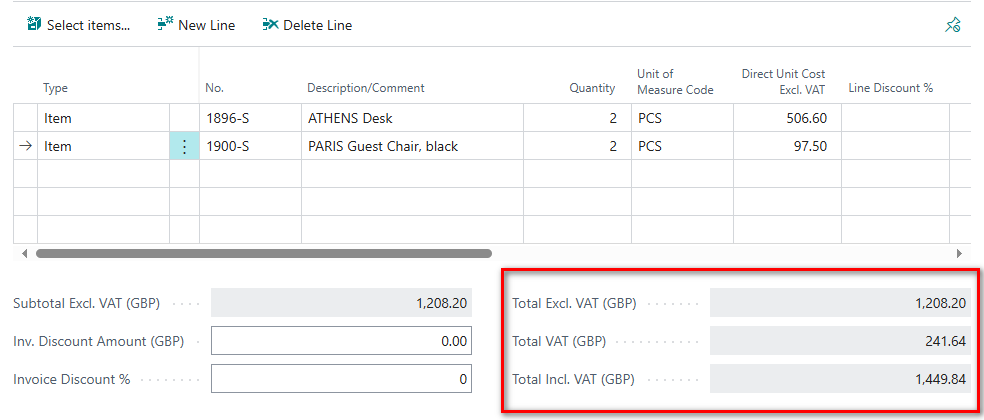
In Dynamics 365 Business Central, document totals are automatically calculated and displayed beneath the line items on sales and purchase documents. These totals include amounts such as Subtotal Excluding VAT, Total, VAT Total, and Total Including VAT, and they update dynamically as you create or modify lines.
Purchase Invoice Lines will total as shown below.
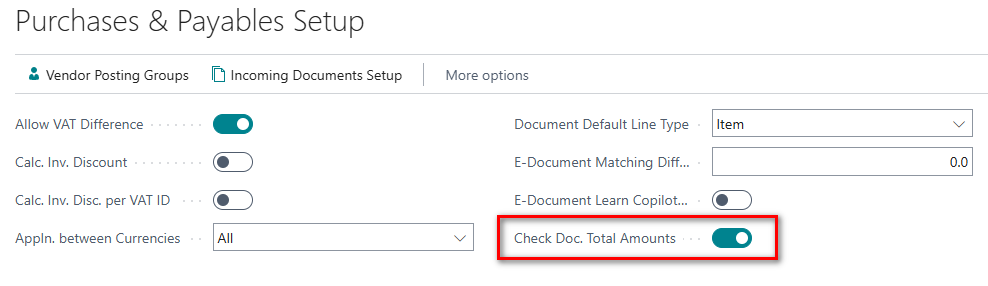
To ensure accuracy when posting purchase documents, Business Central checks whether the Amount Including VAT and the VAT Amount stated on the purchase document match the total amounts of the purchase lines. If discrepancies are detected, you’ll be notified during the posting process. This feature can be activated by selecting “Check Doc. Total Amounts” in the Purchases & Payables Setup.
Once this field is activated then the two new fields on the header must be entered otherwise you will get an error when posting.
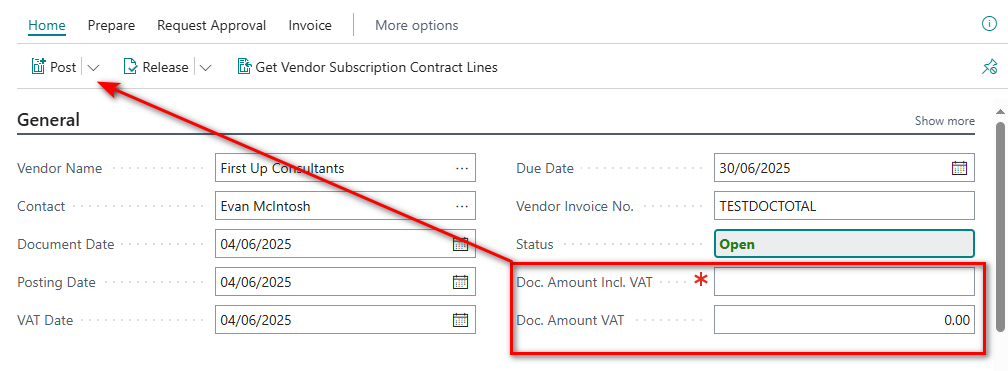
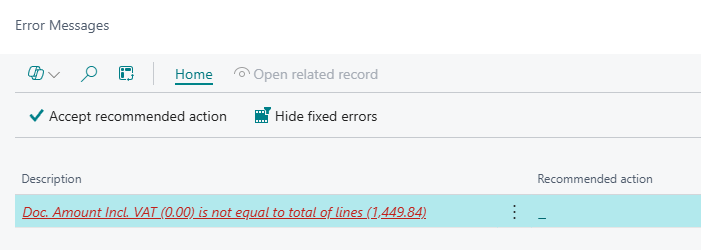
Enter the Doc. Amount Incl VAT and the Doc. Amount VAT should be automatically calculated.
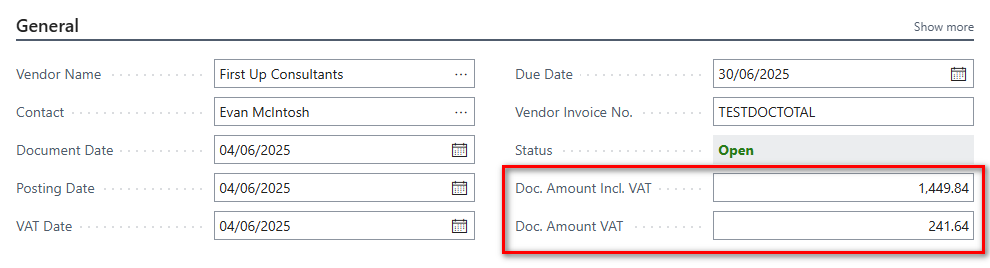
When the totals match then the purchase document can be posted. This feature is available from v26/2025 wave 1 and the check totals will be activated for purchase invoices and purchase credits.
Another great feature coming in the upcoming release.
Thanks, Shauna
Leave a Reply