Many of you will be familiar with the analysis mode within Business Central and many will have used this feature to interactively analyse data directly within the list pages.
The key features of Analysis Mode were
- Pivot and Slice – Pivot tables on-the-fly to view data from different perspectives.
- Aggregate functions – Group by fields (e.g., customer, item category) and apply dynamic filters.
- Group and Filter – Group by fields (e.g., customer, item category) and apply dynamic filters.
- Drag-and-drop fields – Customize views by dragging columns to rows, columns, or value sections.
- Save views – Save personal or shared analysis views for quick access.
- No export required – Analyze within Business Central—eliminates the need to export to Excel.
While this was a feature that allowed users to report on the data themselves in a more flexible fashion there was still the issue with the limited scope of data.
Now with the ability to add information from related tables the scope of data to analyse has been increased. So, how does it work?
From the analysis page click on the down arrow and select the Add Columns From option.
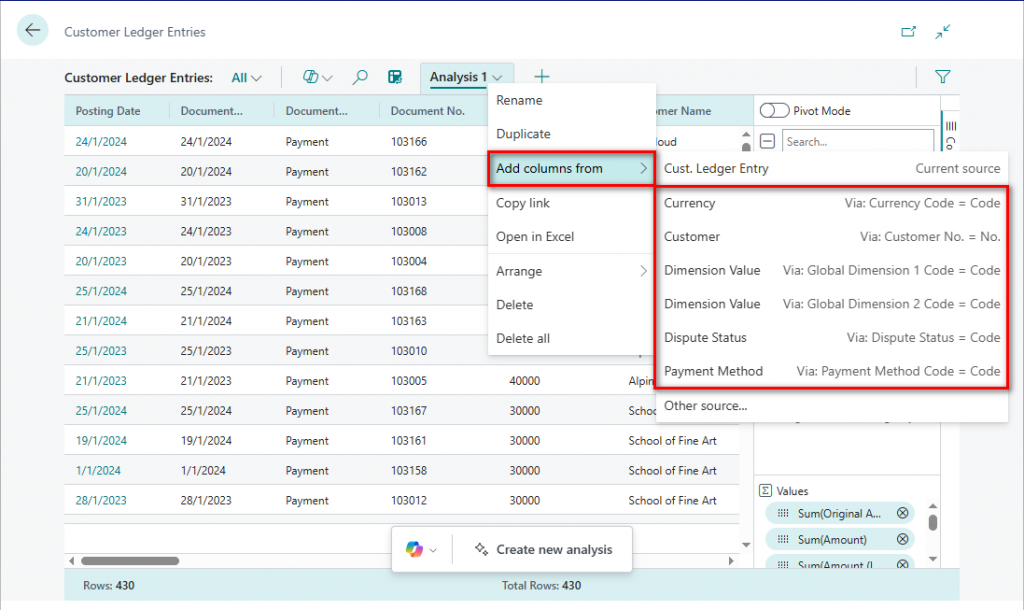
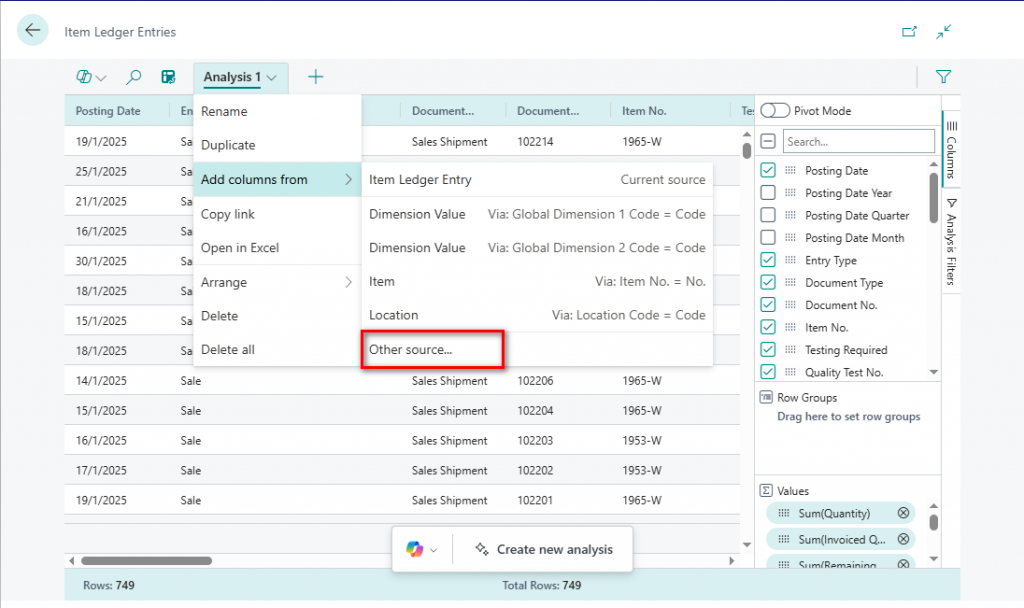
This is a list of the tables that columns can be added from and it also shows how this tables are linked. For example, the Dimension Value Code is linked using either Dimension 1 Code or Dimension 2 Code from the customer ledger entries.
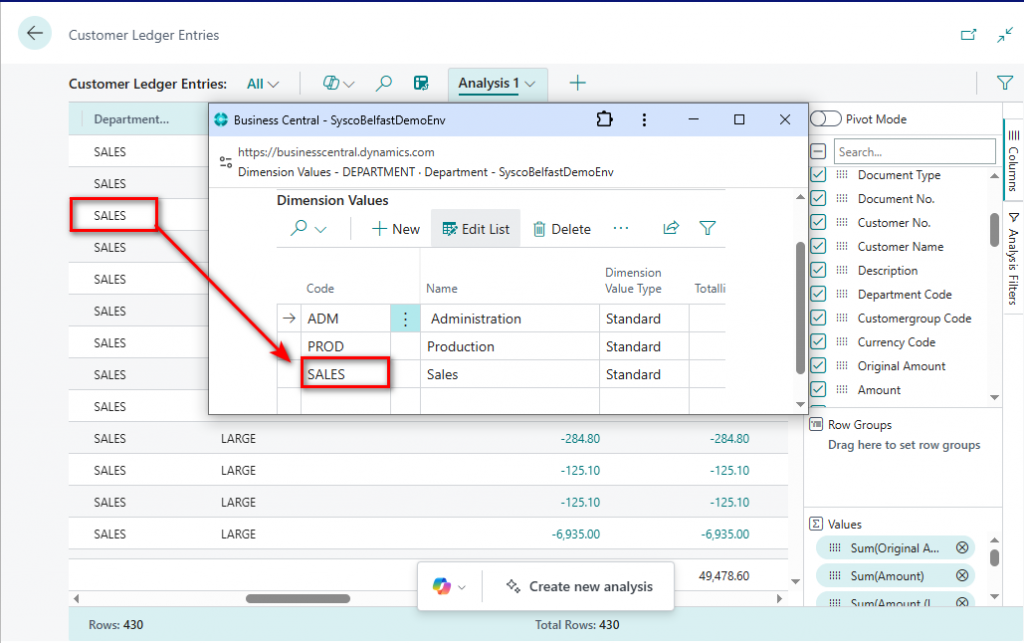
However, let’s proceed with this example and select the customer and from this you will then be presented with the fields from the customer card.
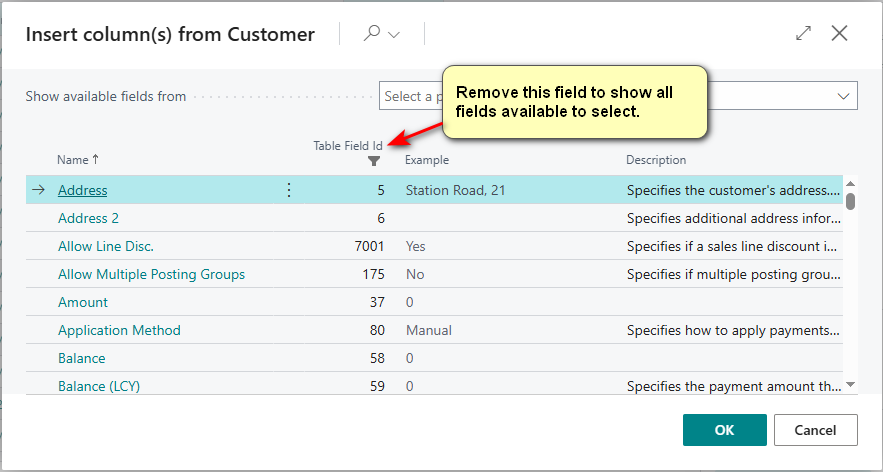
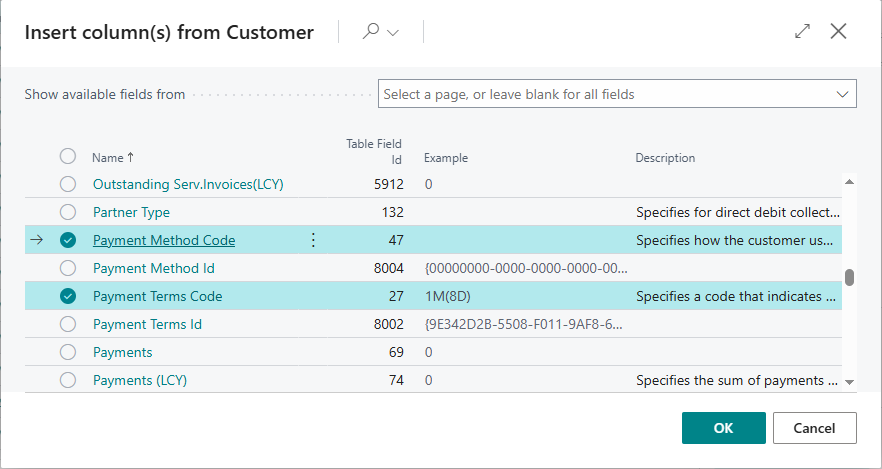
Select one or more columns to add as below and then ok.
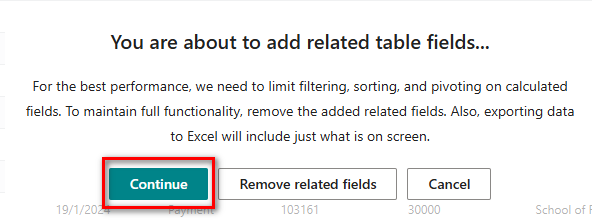
Click on the confirmation and note that this will always appear when you enter analysis mode from within the customer ledger entries.
The columns will be added at the end of the list but also to the columns section allowing you to group on these new related fields.
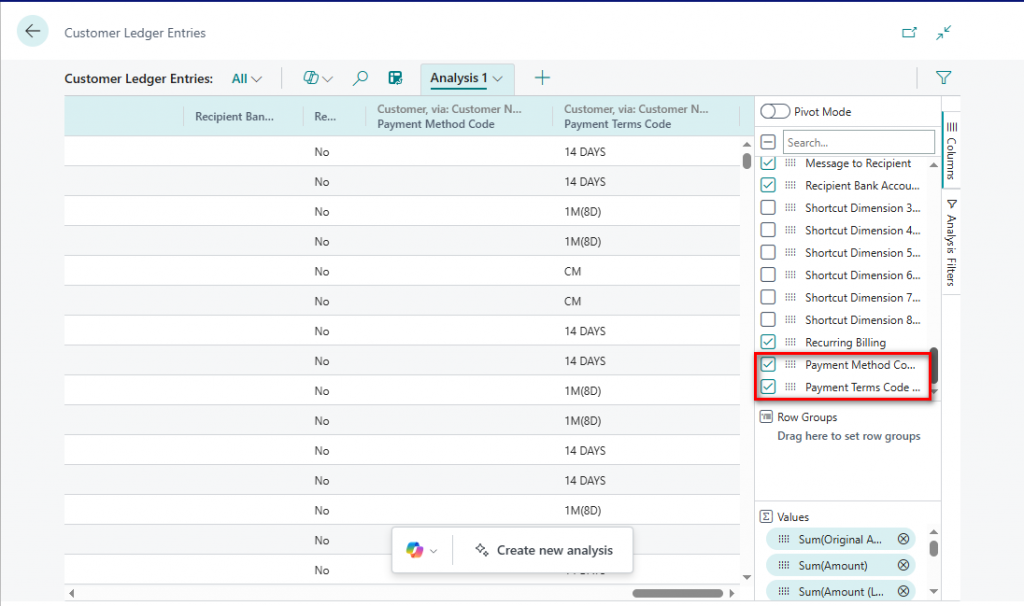
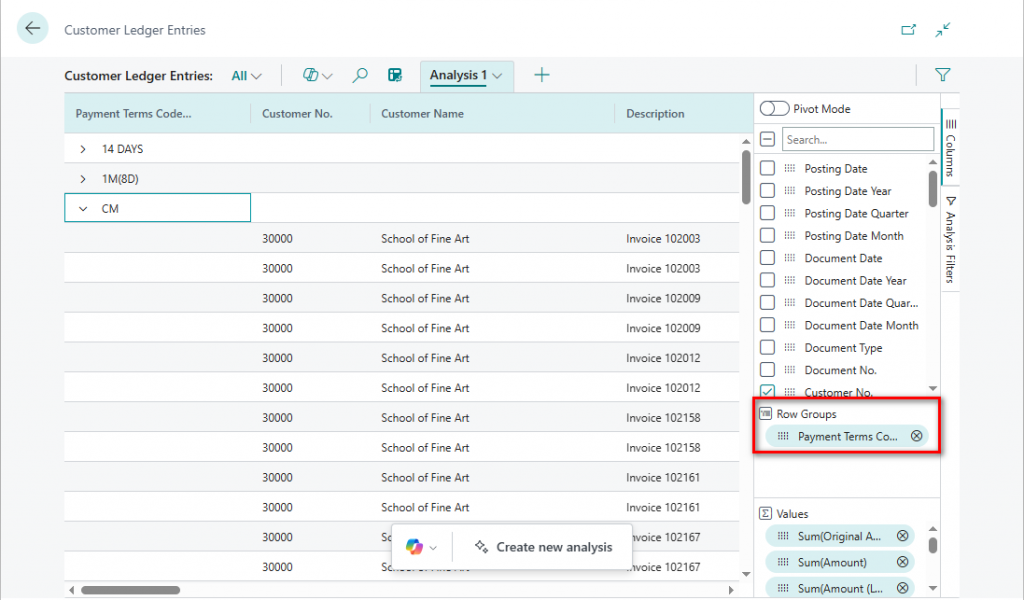
If you have had any customisations around additional fields added to the customer ledger entry then any with a table relation can be added unto this analysis.
You can also add columns by selecting the ‘hamburger’ symbol to the right of the column name. Any columns added via this method will be inserted as new columns to the right.
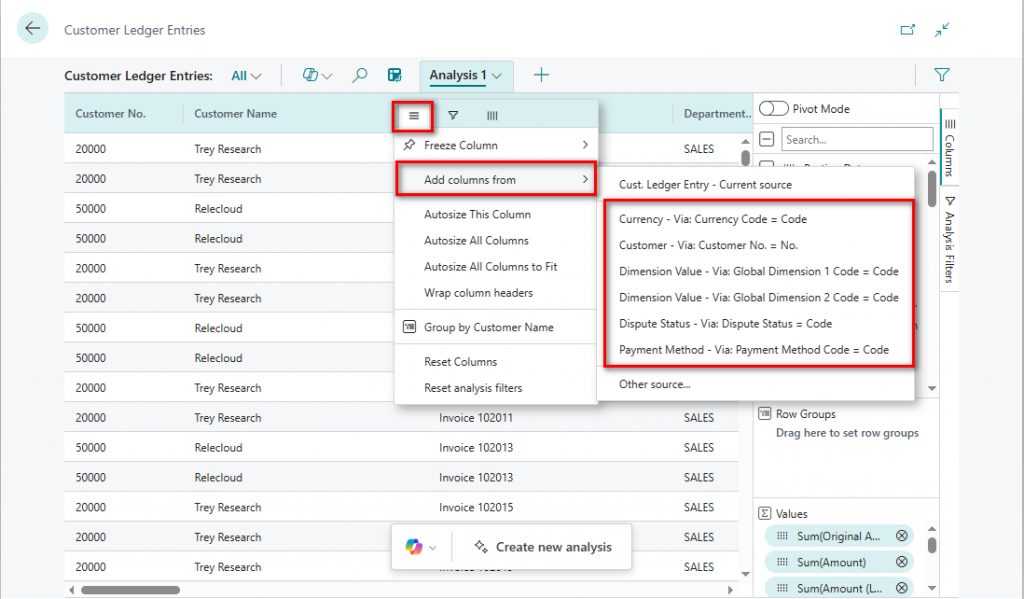
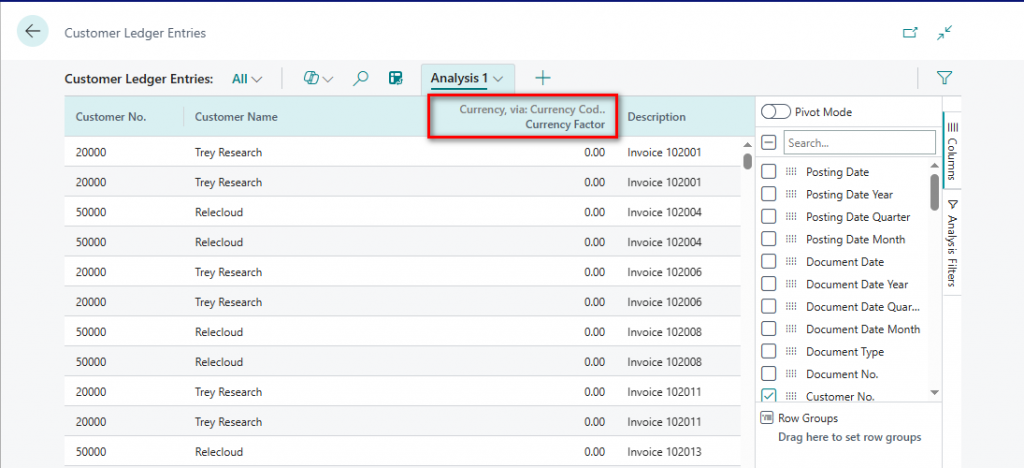
Select Currency and add the field currency factor.
Another option available to use Other Source when selecting the option Add columns from. In this example, Item Category Code is a field available on the Item Ledger Entries but it isn’t an option that is already defined.
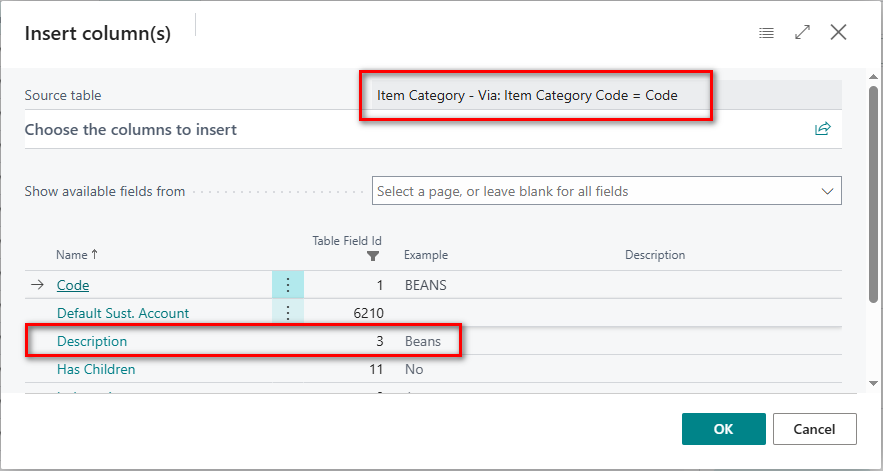
Once you select Other source then enter the details as follows:
Enter the table that you want to add as a link and then select the field that you would like to include. In this instance it will be table Item Category and field Description.
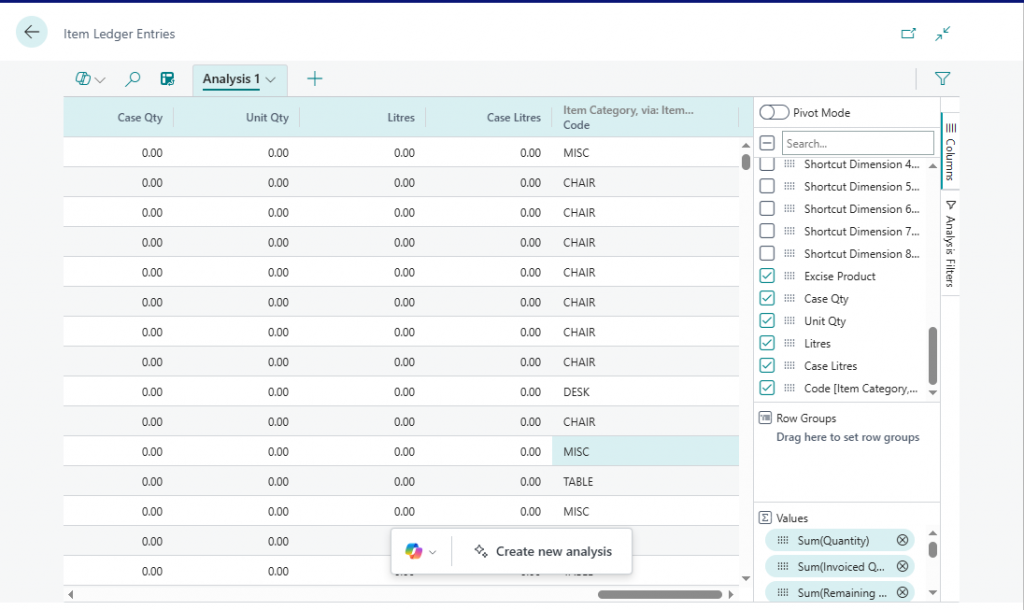
Once again the field has been added to the end and is also available as a column to group by.
This has certainly enhanced the analysis feature within Business Central and should make a positive impact on the users to allow for even more flexible data analysis.
Thanks, Shauna
Leave a Reply