In Microsoft Dynamics 365 Business Central, Reminder Letters are used to notify customers about overdue invoices. This is part of the Credit and Collections process to help improve cash flow and maintain customer accountability. The main purpose of Reminder Letters are to
- Encourage prompt payments.
2. Alert customers about overdue payments.
3. Apply reminder fees or interest (optional).
Starting in version 26, Business Central allows you to automatically create, issue, and send reminder letters based on predefined conditions. This feature reduces workload and ensures customers are notified promptly about overdue invoices.
✅ Key Enhancements in v26
| Feature | Description |
|---|---|
| Automatic Creation | Business Central can now automatically create reminders based on a schedule or event trigger. |
| Automatic Issuing | The reminders can be auto-posted and sent without manual review (optional setting). |
| Job Queue Integration | Uses job queues to schedule and run reminder generation and sending processes. |
| Enhanced Logging | Logs actions for audit trail and error troubleshooting. |
| Conditions Configuration | You can set up rules for when to generate and send reminders (e.g., days overdue, customer filters). |
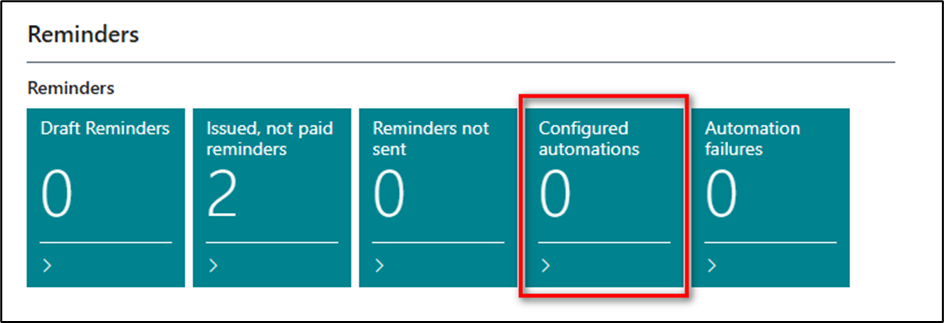
How does it work? A new set of stacks have been added to the Accounts Receivables Administrator profile. This allows quick access to the configured automations or else search for “Reminders Automation”.
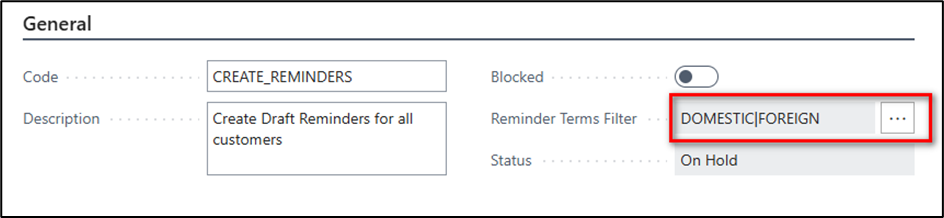
Click on New and enter the details as below. The Reminder Terms filter allows you to determine which reminders should be created using this automation.
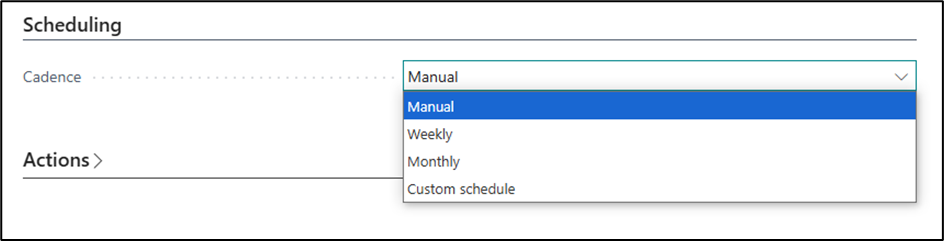
Setup the schedule required. For Weekly or Monthly enter a start date for this process to commence. Custom schedule will allow a Next Run Date formula to be entered.
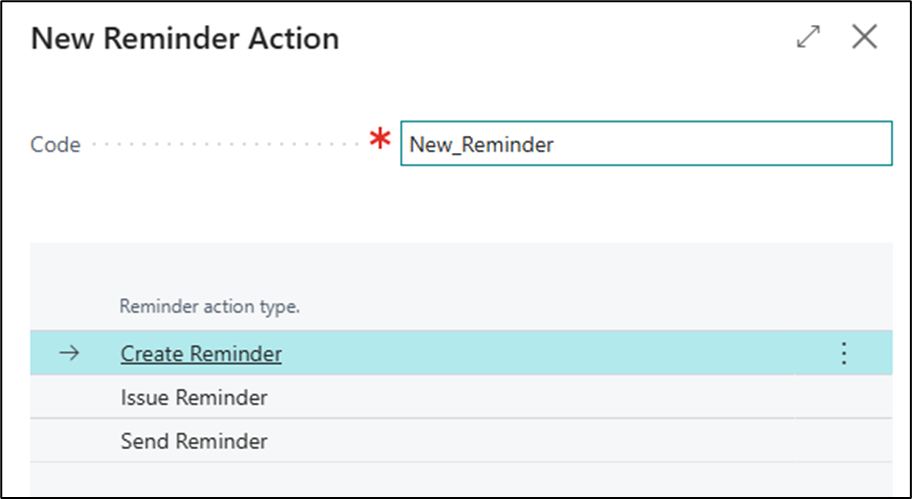
Then click on New in the Actions section.

Enter the Reminder Code and select “Create Reminders” followed by ok.
Then choose whichever additional filters required. I have selected the filter to only show the overdue entries.
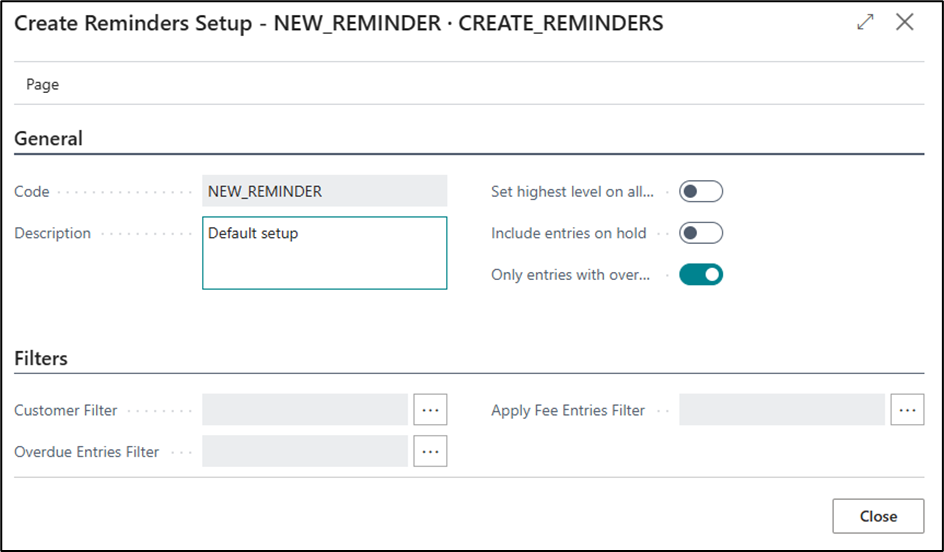
Then click on Start.

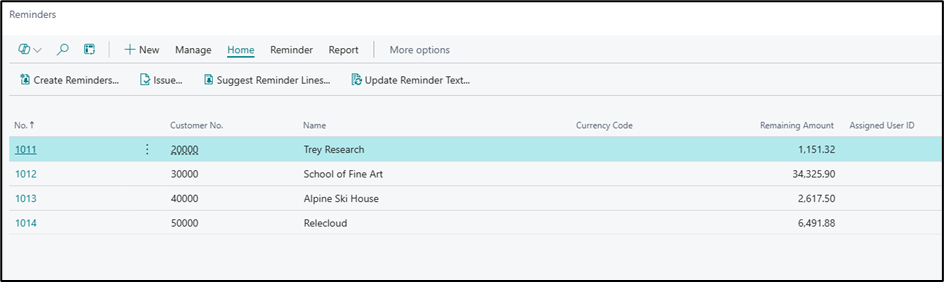
This will create a job queue entry (if setup to run automatically) running the “Reminders Automation Job” codeunit.
When the job has run successfully there should be Reminders created for any customers with overdue balances. N.B. This will depend on the basic reminder setup already complete. Microsoft Learn link provided. Set Up Reminder Terms and Levels – Business Central | Microsoft Learn
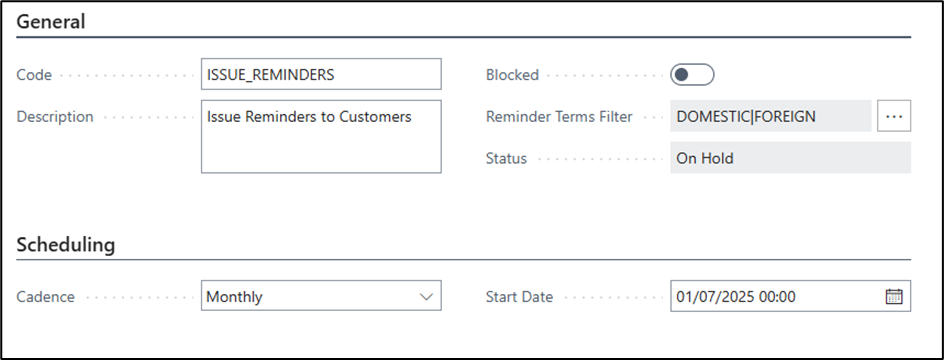
Now create another reminder automation to issue the reminders. Setup the details as shown in the below example.
Again, click on New within the Actions and here you can add any additional parameters to replace Posting/VAT date or filter on Reminder Terms.
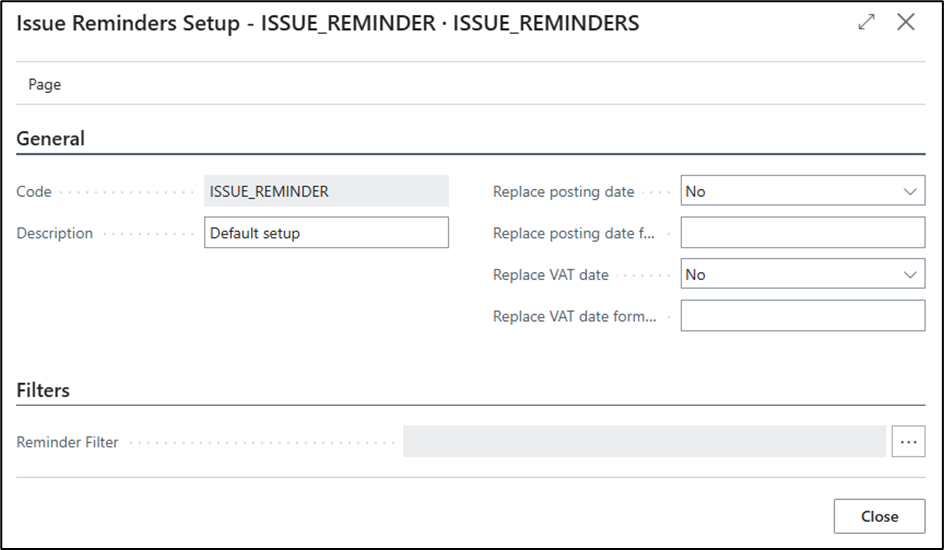
Once complete a second job queue will be created.

Once this job has been completed the reminders will have been issued and can now be viewed within the Issued Reminders page.
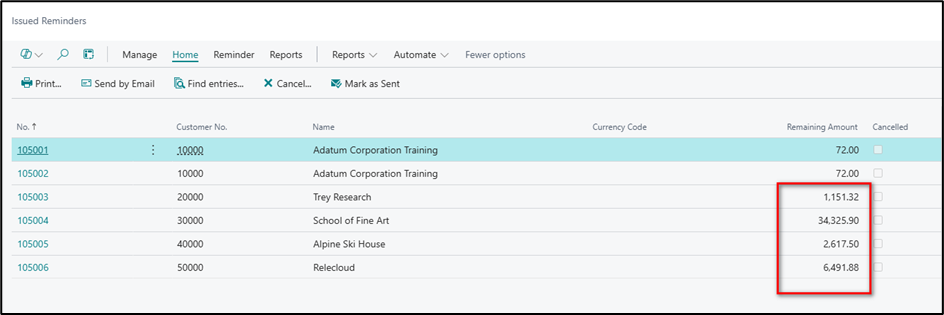
The final automation will then email the reminders that have just been issued.
Repeat the same process as above.
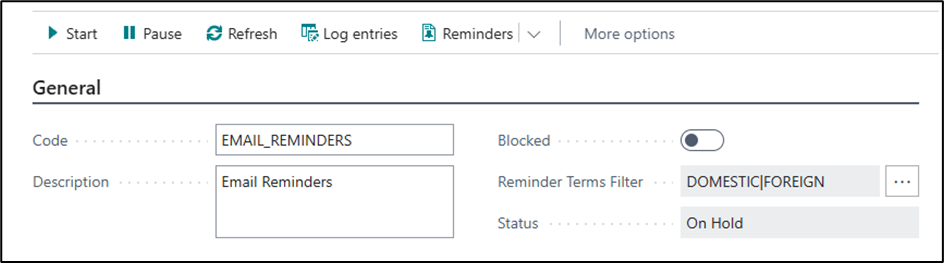
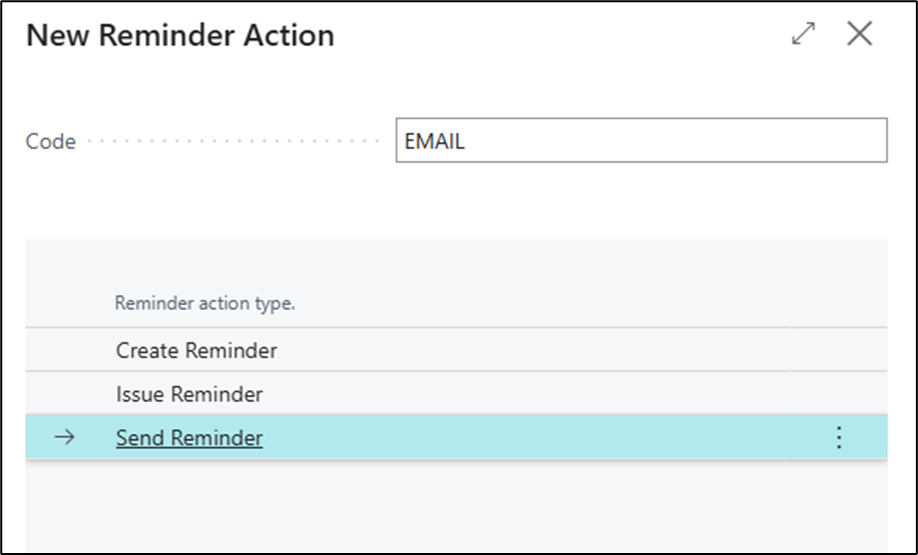
The new Action will be as follows
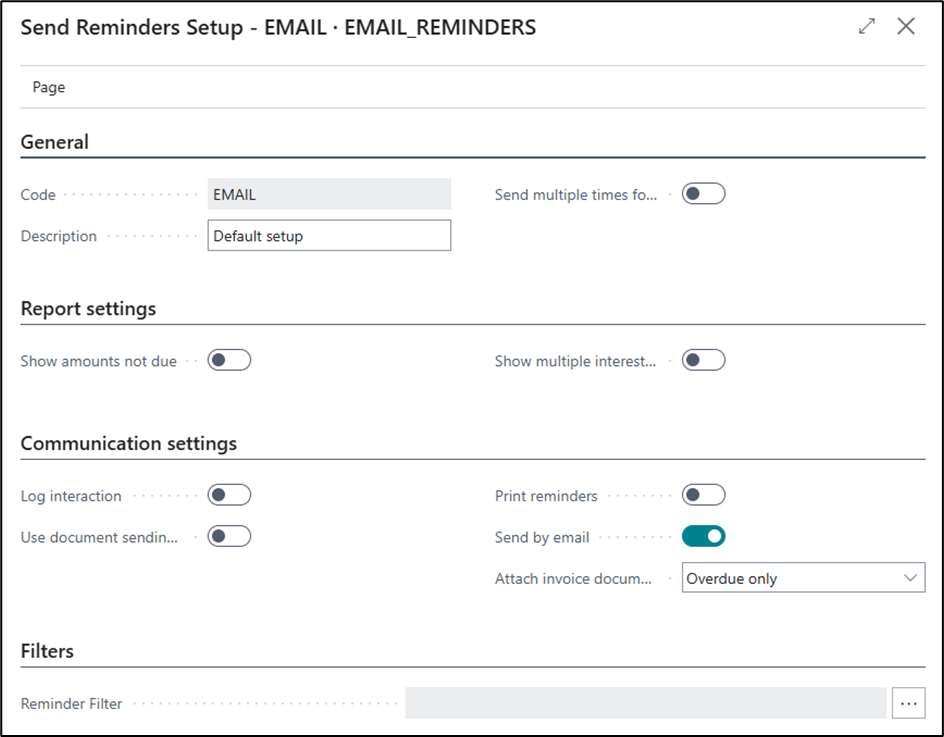
Then choose any filters that may be required, I choose to send the overdue invoices as well as the reminder letter.
Then confirm by choosing Start which will create the third job queue entry.

Here are the 4 emails sent.

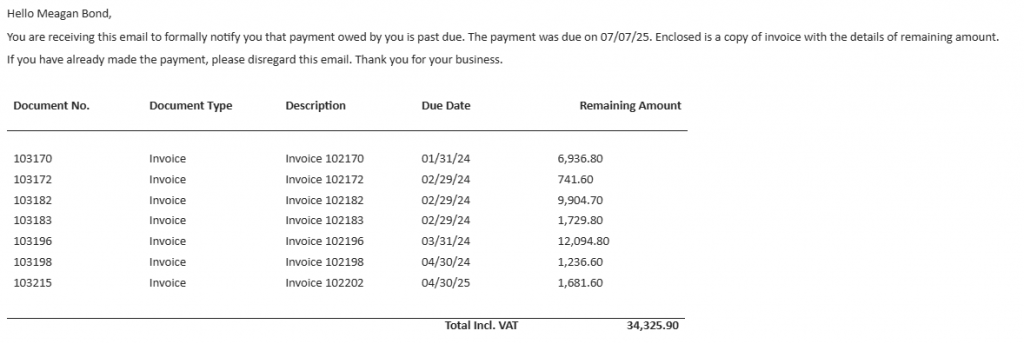
Choosing one of the emails shows all the attachments, i.e. one reminder letter and 7 attachments for the 7 overdue invoices.

Along with the email body of the outstanding transactions.
The automated reminder functionality in Business Central v26 is one of those features that delivers immediate value with minimal effort. It not only streamlines accounts receivable but also ensures:
✅ Reduced errors compared to manual processing
💼 Consistency in following up with customers
⏱️ Time savings for finance teams
📈 Improved cash flow through timely reminders
Thanks, Shauna
Leave a Reply