Register Customer Payments is a solid option in Business Central that’s often overlooked, especially when people default to the Cash Receipt Journal or Payment Reconciliation Journal. It’s more user-friendly and visual, designed for quickly applying payments to open invoices—kind of like a simplified payment posting screen.
After customers make electronic payments to your bank account, you must take the following actions:
- Apply each paid amount to the related sales document.
- Post the payment to update the customer, general ledger, and bank ledger entries.
Depending on your business needs, you can register payments manually, automatically, and through payment services.
Use the Register Customer Payments page to balance internal accounts by using actual cash figures to ensure that payments are collected. Quickly verify and post individual or lump-sum payments, process discounted payments, and find the unpaid documents.
You must post payments for different customers that have different payment dates as individual payments. Payments for the same customer that have the same payment date can be posted as a lump-sum payment. Lump-sum payments are useful, for example, when a customer made a single payment that covers multiple sales invoices.
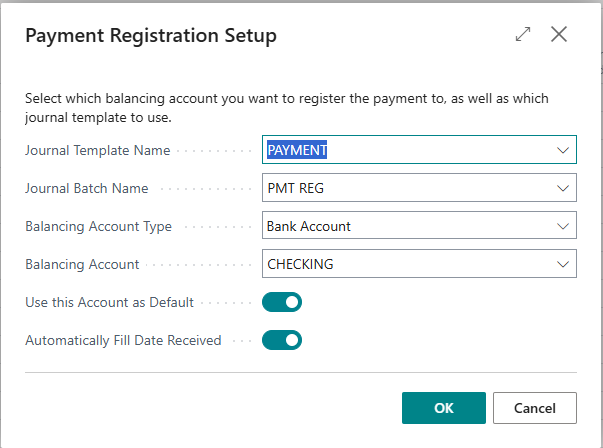
Complete the Payment Registration Setup by using the Tell Me to find the page.
or select the Setup from the Register Customer Payments page.
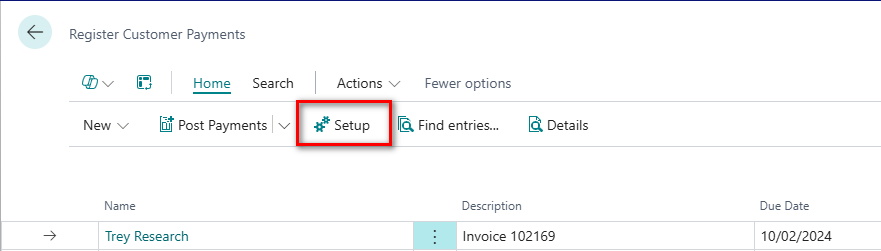
N.B. This page can also be accessed via the customer list which then filters the unpaid transactions to that customer.
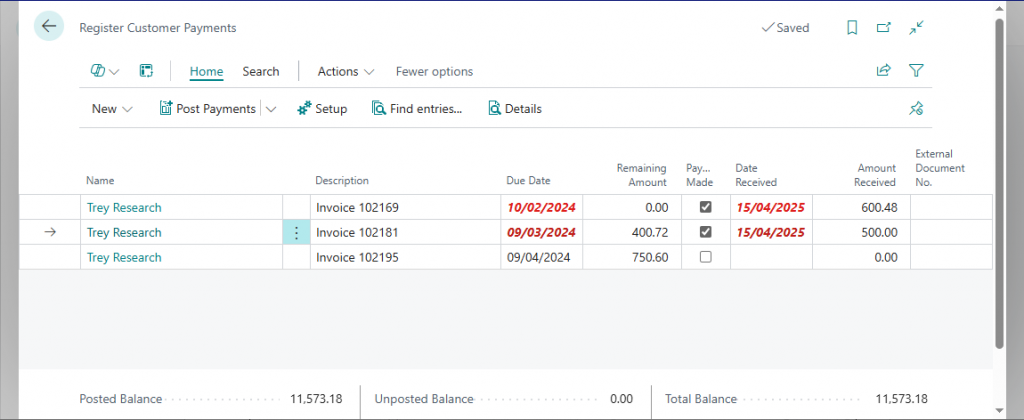
Let’s focus on Trey Research as our first example and this is where the payments will be posted individually. Here we have three transactions that have yet to be paid.
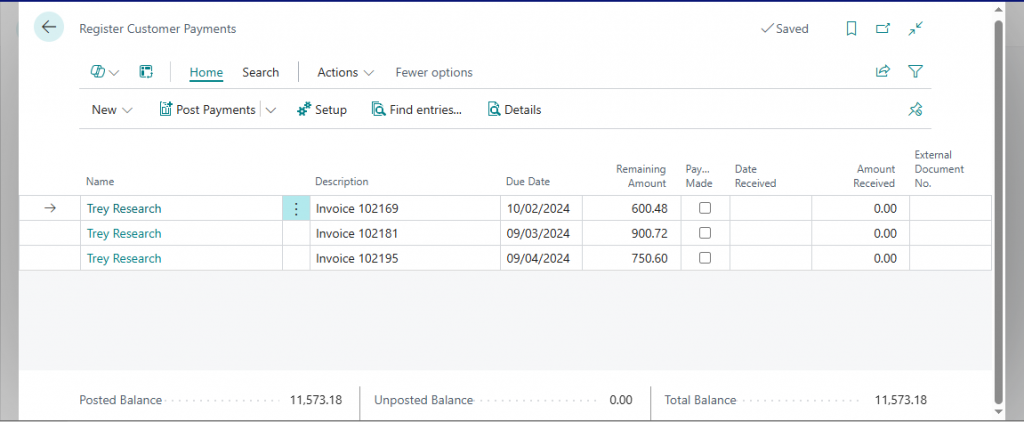
If the full amount has been paid then tick Payment Made. The Date Received will default to the workdate as we asked for this in the setup above.
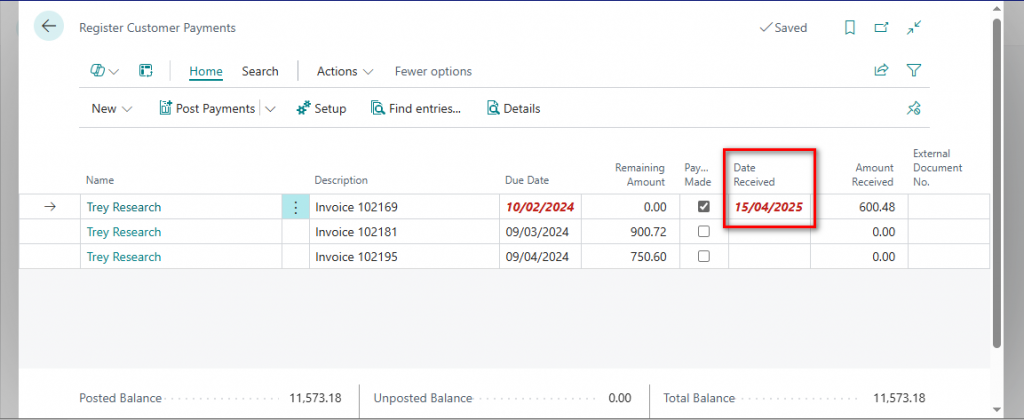
Date Received can be overtyped or you can untick this field within the Setup and manually enter the date.
The second invoice will only be part paid so the amount received has been overtyped.
There are two options available on how you want to post these payments.
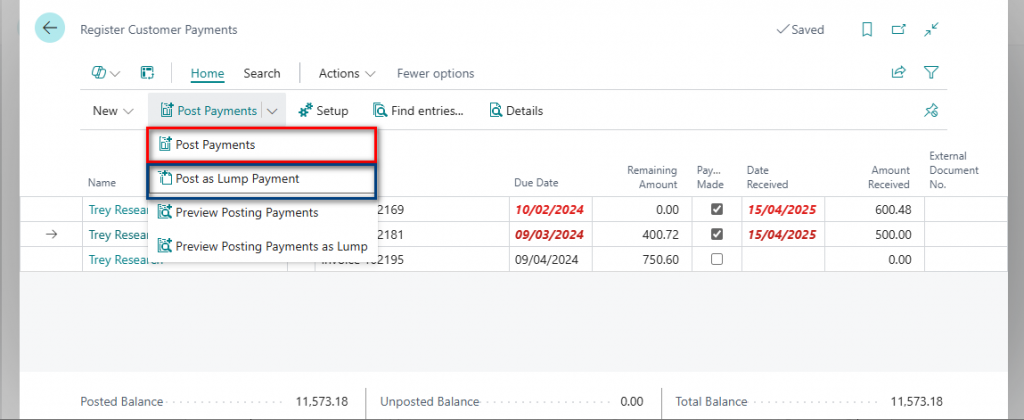
Post Payments will create individual bank ledger entries for each payment whereas Post as Lump Payment will create one bank ledger entry. Use the Preview Posting to confirm these transactions.
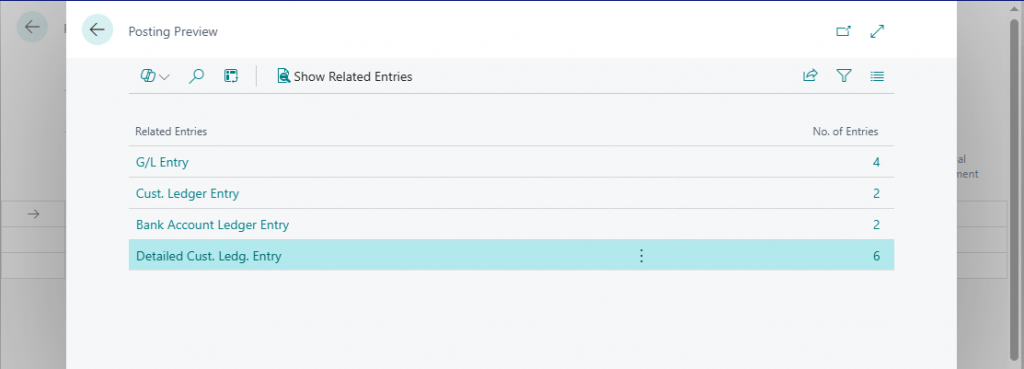
or as a lump payment
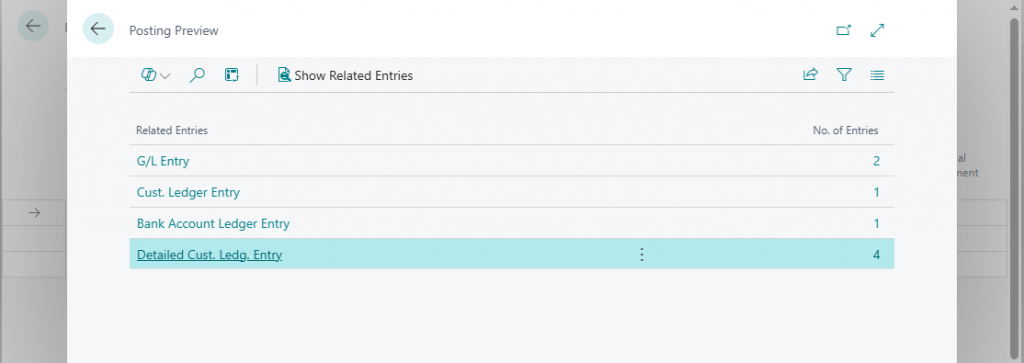
Post individually for this example. Then move unto the next payment.
In this example there is a document that has not yet been invoiced so therefore not available to select for payment
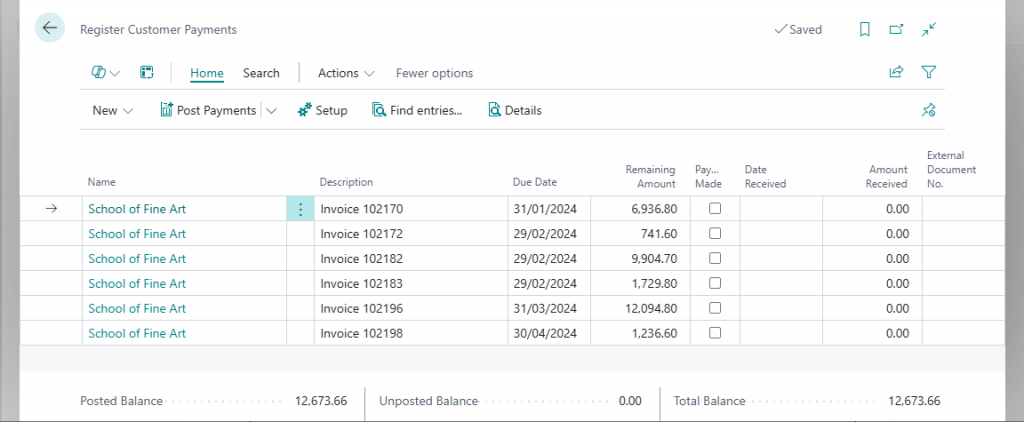
Use the Search and Search Documents.
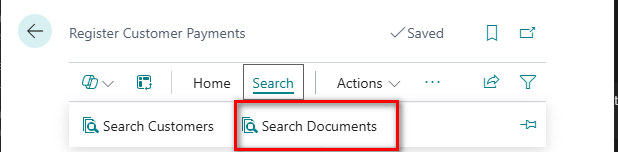
Enter the document number and then select Search.
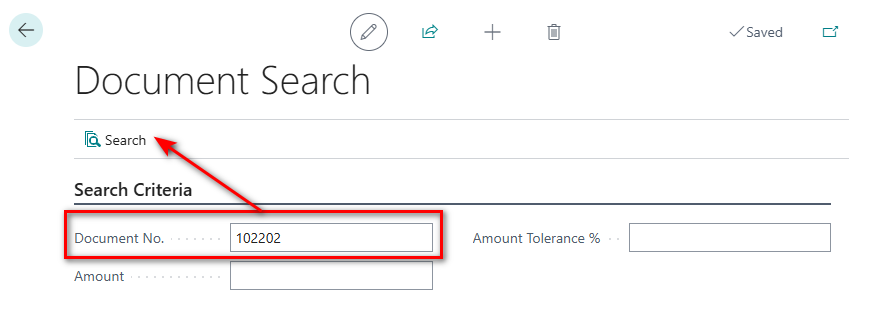
Now we can show the document and post.
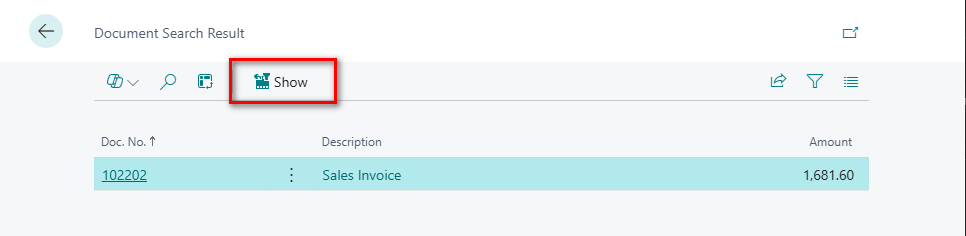
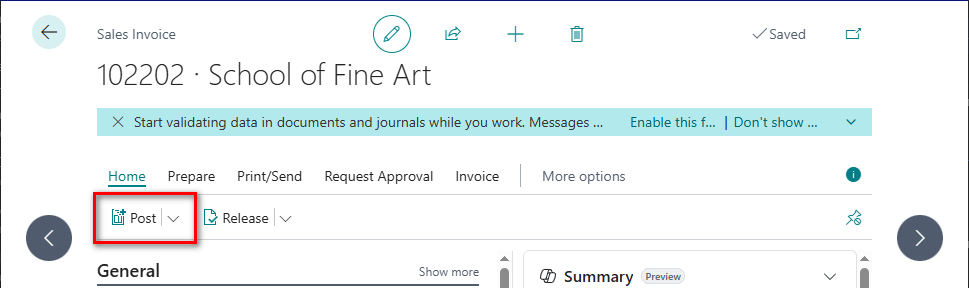
Returning back to the Register Customer Payments screen to refresh the details will now show the invoice that was just posted.
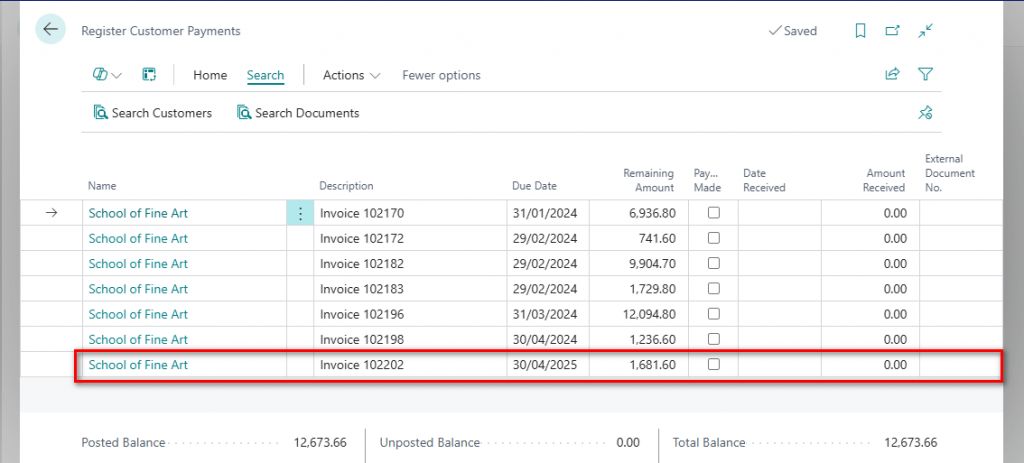
Now continue with the steps above the mark the appropriate entries as paid.
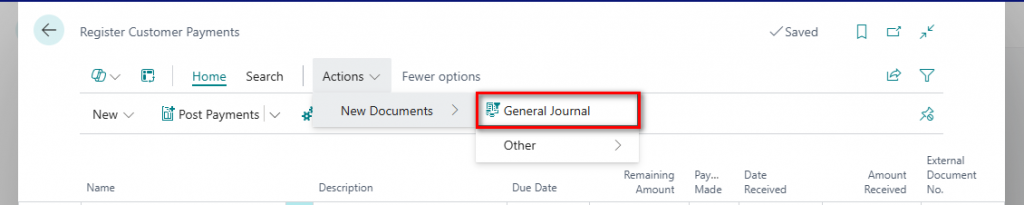
So, what would happen if you receive a payment that does not relate to a document? Using the same customer select the General journal from within Actions.
Some of the details will be defaulted from the Regsiter Customer Payments along with the Balance Account details.
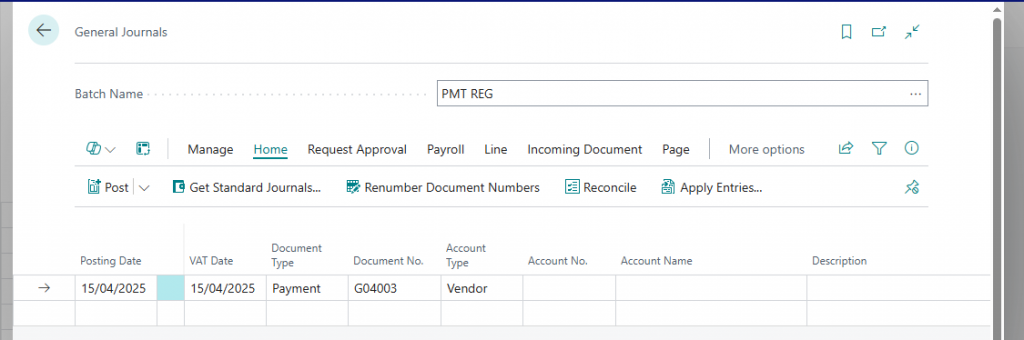
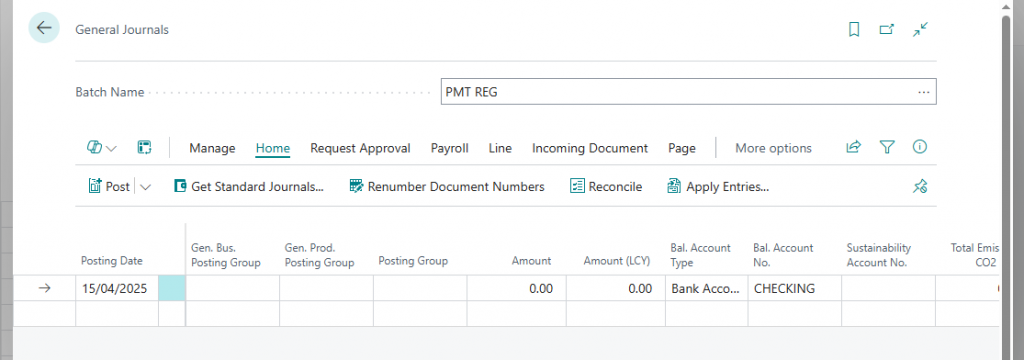
Just set the remaining fields to the correct values and then post.
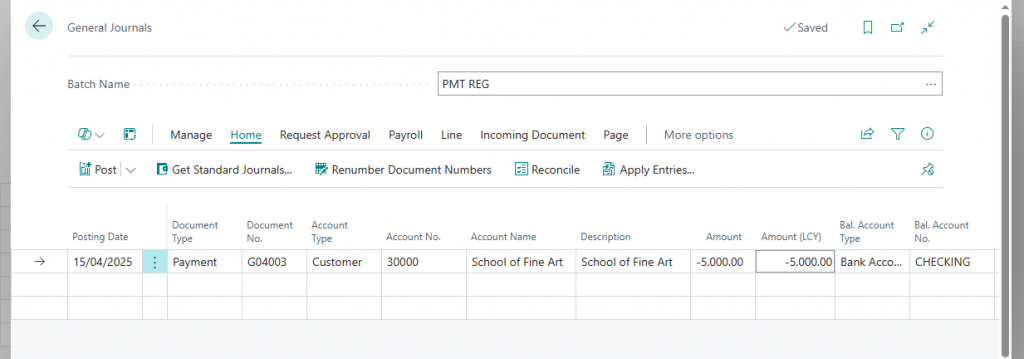
At first glance I can definitely see the benefit of using this option rather than the usual Cash Receipt Journals and it is one that I will defintely demo in the future.
In my next post I will take this further and investigate how to handle discount that should be applied based on the customer payment terms.
Thanks, Shauna
Leave a Reply